# Quest Log
## Overview
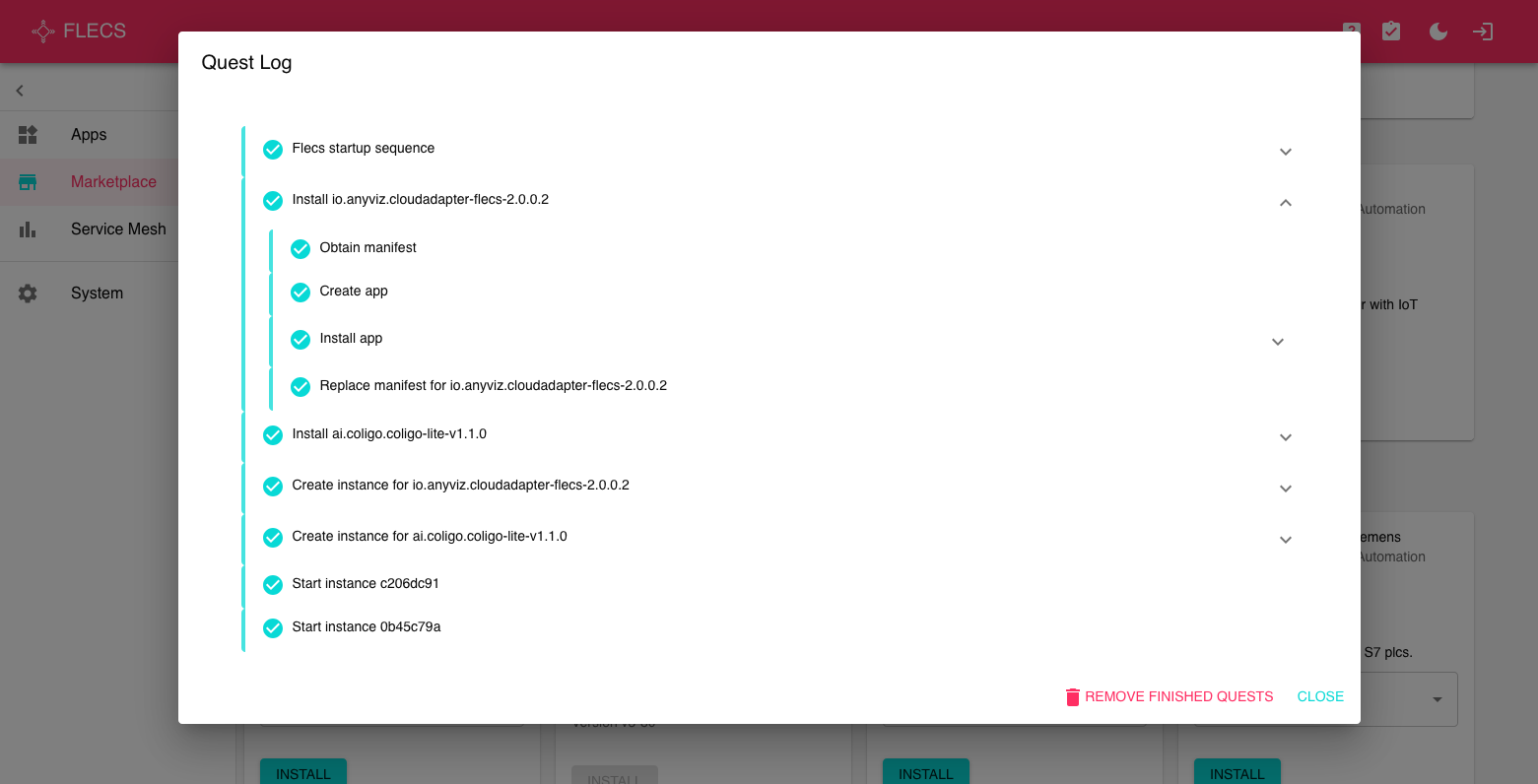
The **Quest Log** is a powerful diagnostic and transparency tool built into the FLECS WebApp. It enables users to monitor, log, and trace system activities in real-time and retrospectively.
It provides a comprehensive view of what is happening on the device, what actions have been triggered, which steps are currently running (even in parallel), and whether these operations have succeeded or failed.
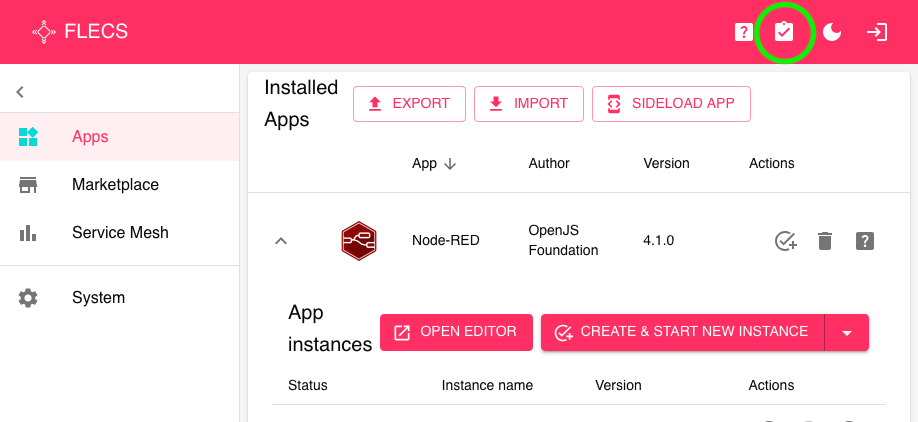
Access to the Quest Log is simple: just click the dedicated **Quest Log icon in the top-right header of the FLECS WebApp**.
Quest Log FLECS
## Key Features
### Real-Time Activity Monitoring
* Displays a live feed of system operations.
* Shows which installation, update, or configuration steps are in progress.
* Supports parallel task execution tracking.
### Historical Event Logging
* Keeps a complete history of what has happened on the device.
* Useful for audits, troubleshooting, and system diagnostics.
### Success & Error Indicators
* Actions are marked as **successful** or **failed**.
* Failed operations include:
* A human-readable error message.
* A problem description to assist with debugging or support requests.
## Accessing the Quest Log
To open the Quest Log:
1. Navigate to the top header bar in the FLECS WebApp.
2. Click on the **📜 Quest Log icon**.
3. A panel will slide out, displaying both **active operations** and **historical logs**.
> *Note: You may see multiple tasks running simultaneously; this is a core feature of FLECS Core's multitasking architecture.*
Accessing the Quest Log
## Use Cases
* **Debugging** failed app installations
* **Verifying** the success of OTA updates
* **Tracking** device onboarding steps
* **Reviewing** system behavior over time
## Related Topics
* [Using your App with FLECS Core](https://docs.flecs.tech/product-docs/flecs-core/app-management/using-your-app-with-flecs-core)
* [Installing an App from the FLECS Marketplace](https://docs.flecs.tech/product-docs/flecs-core/app-management/install-an-app-from-the-flecs-marketplace)
* [Device Onboarding Service (D-O-S)](https://docs.flecs.tech/product-docs/flecs-marketplace/device-onboarding-service-d-o-s)